
If your Growatt inverter is showing error codes, losing connection to ShinePhone, or not producing power correctly, a reset may help restore normal operation. In this guide, you’ll learn How to Reset Growatt Inverter such as a soft reset, standard restart, and factory reset on a Growatt inverter.
You should not reset the inverter regularly without a logical reason. In most cases, a Growatt troubleshooting reset is usually needed when problems like a sudden drop in solar power, issues with monitoring applications such as ShinePhone or ShineServer, repeated error messages, WiFi or data problems, a frozen screen, or unusual restart behavior happen. In most conditions, these errors are temporary, and a simple restart is just enough to resolve the problem without any more steps.
| Growatt Inverter Reset Method | When to Use It | Will It Delete Settings? | Difficulty |
|---|---|---|---|
| Soft Reset (Reboot) | Temporary errors, frozen screen, communication issues | No | Easy |
| Standard Restart | Power production issues, recurring minor faults, WiFi problems | No | Easy |
| Factory Reset (Hard Reset) | Persistent configuration errors or advanced troubleshooting | Yes | Advanced |
| Control Panel Reset | Models with built-in reset options | Depends on reset type | Medium |
There are different ways to reset a Growatt inverter depending on the problem which includes:
A soft reset that is usually known as restart or reboot is the simplest way and does not affect your systems. It is simply a system refresh. This is the most common solution when users search for how to reboot Growatt inverters.
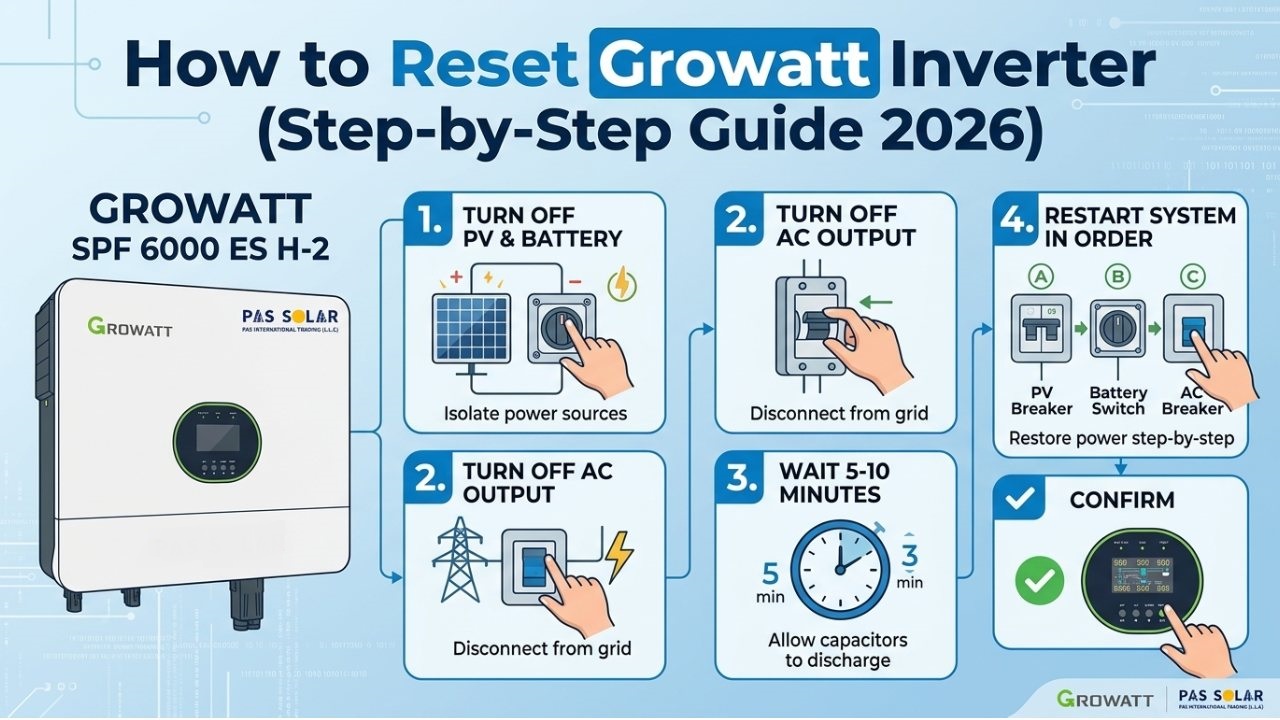
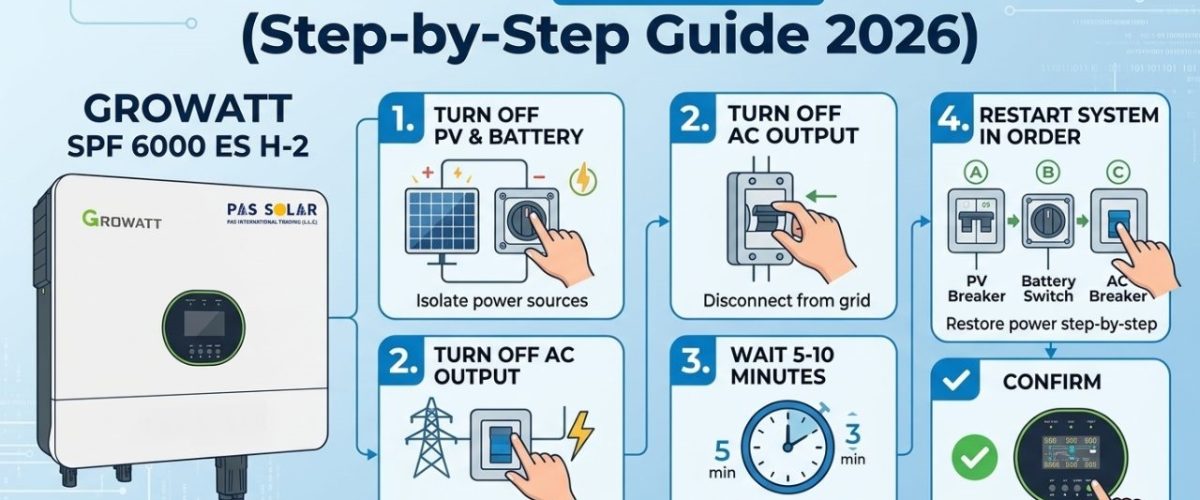
This method is recommended as the safest Growatt inverter restart guide:
This process allows the inverter to fully discharge and restart cleanly. It can help to clear temporary faults and restore normal operation.
A Growatt inverter factory reset is a more advanced process that restores all settings to default. It should only be used when necessary. This will remove all configurations such as grid settings, battery setup, and monitoring data.
Typical steps ( they may be vary based on the model):
Here are the main step by step methods to reset a Growatt inverter.
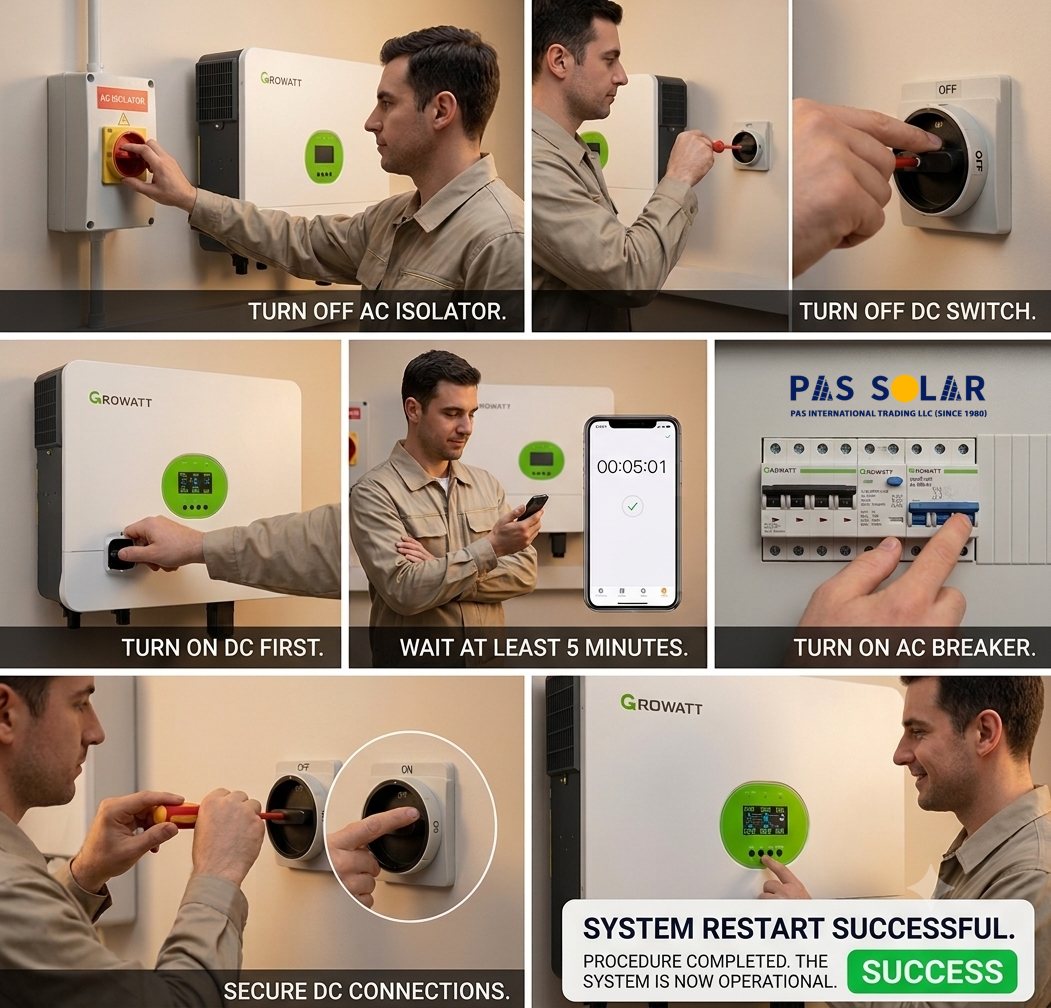
This is the most commonly used method. (the simplest and safest way to restart a Growatt inverter.)
This method solves most minor system errors and is usually the first recommended step by installers. A soft reset does not change settings of the system and it is just to resolve tiny errors, temporary communication problems, or small performance glitches.
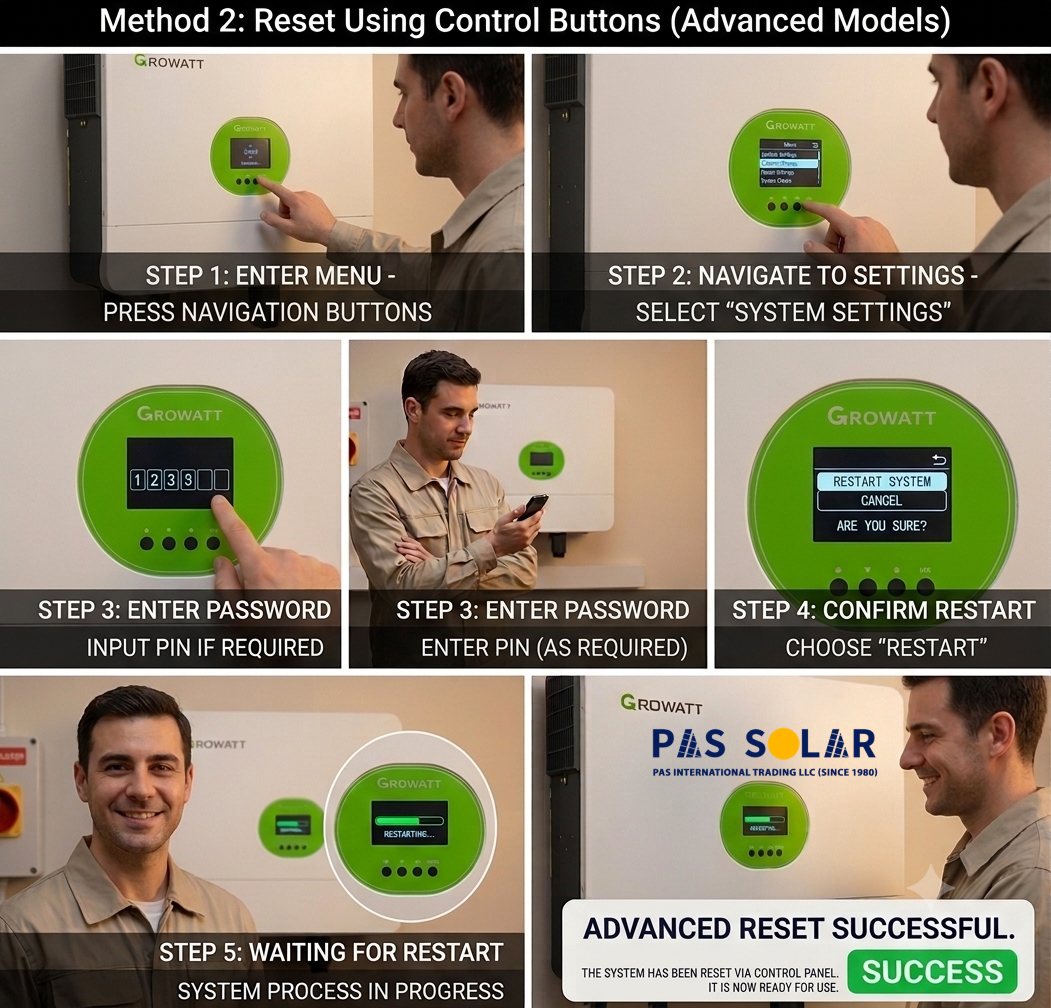
Some Growatt models allow reset through the control panel:
This method is usually used by installers or technicians.
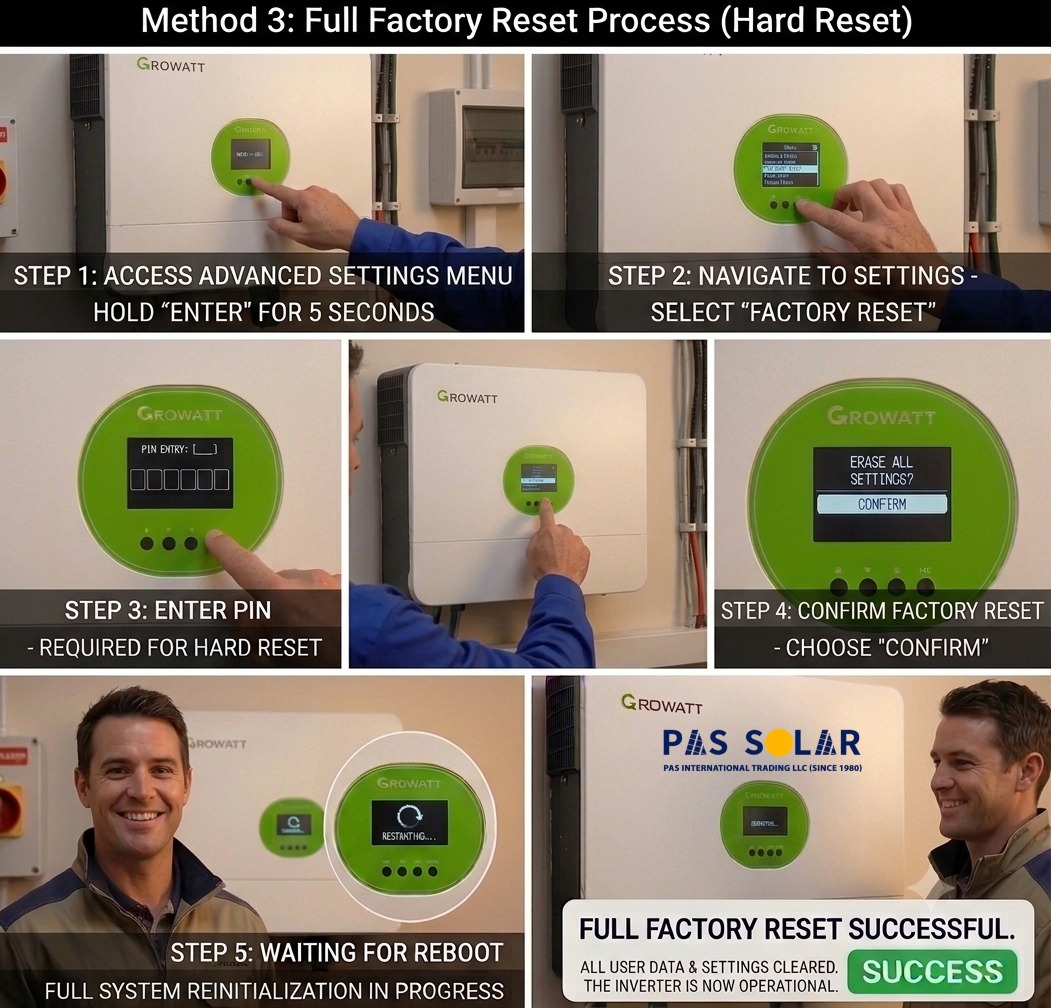
Full factory reset process that often called a hard reset, is a more advanced reset solution for serious issues in system:
Based on the model of inverter, administrator access or a password may be needed to complete the process. A factory reset may erase customized settings, including battery parameters, communication settings, and grid configurations. After the reset process is completed,Users may need to configure these settings again. Users should always refer to the official manual or installer documentation before performing a factory reset.
After performing a reset, some temporary issues may appear:
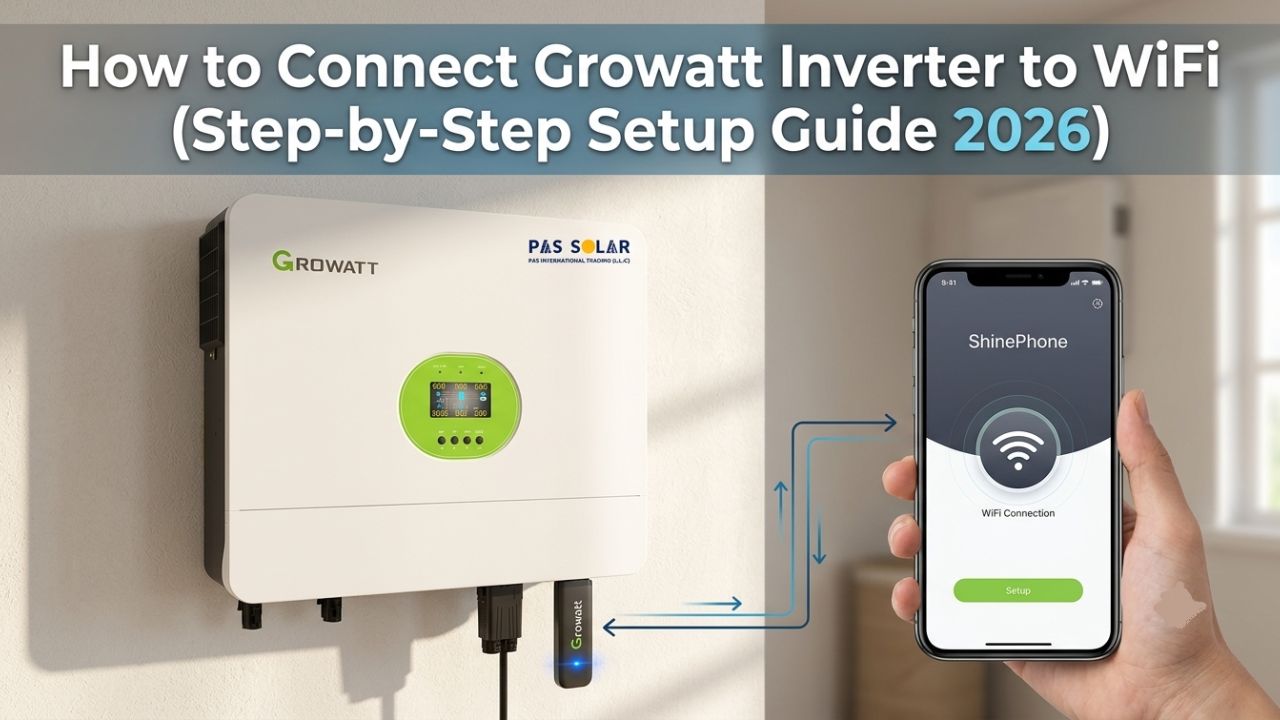
After the reset, the inverter may lose its connection to the ShineWiFi module and need reconnection to the monitoring platform.
Customized settings such as battery parameters, communication settings, and grid configurations may need to be configured again.
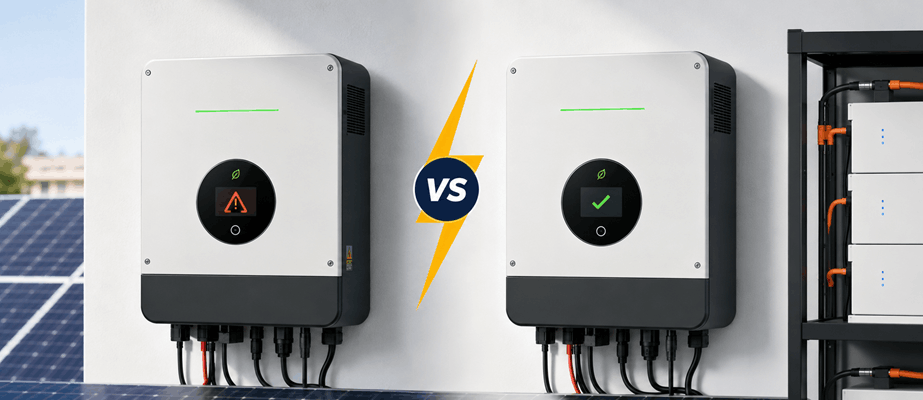
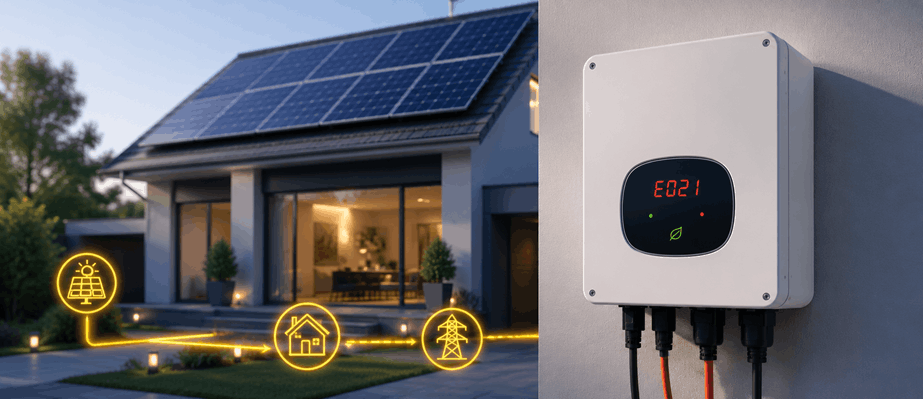
Some error codes may reappear after the reset if the underlying hardware, wiring, or installation issue has not been resolved.
In some cases, outdated firmware can cause persistent problems. Updating the inverter firmware may help resolve certain issues after the reset
These issues are common after a reset and can usually be resolved through proper reconfiguration, troubleshooting, firmware updates, or by verifying the compatibility and communication settings of your Solar Lithium Battery.
Before performing any Growatt inverter reset steps, keep the following in mind:
Before performing any reset procedure, ensure that both AC and DC power sources are properly isolated according to the manufacturer’s instructions.
Only reset the inverter when it is operating normally and no safety risks are present.
Do not perform a reset process during severe weather such as rain and storms that could increase electrical risks.
If the inverter has signs of physical damage, burning smells, water ingress, or severe faults, contact a qualified technician instead of resetting the system repeatedly.
Different inverter models may have different reset methods and requirements. Refer to the official documentation before proceeding with any reset operation.
Important: Incorrect reset procedures may lead to configuration errors or system delays.
If the inverter does not return to normal operation after reset:
In some cases, a firmware update may also be needed to stabilize performance.
Resetting a Growatt inverter can be a useful way to resolve some system problems, communication faults, and temporary errors. If you are considering replacing an older unit or choosing a new system, a growatt 15kw hybrid inverter can be a suitable option for applications that require both solar generation and battery storage.
Not every problem needs a reset. If you decide to perform one, be sure to follow the instructions for your specific inverter model.
In many cases, a simple restart can restore normal operation without affecting system settings. If the same problem comes back after a reset, the cause is likely something more than a temporary system error.
At Pas Solar, we believe that finding the source of the problem is more effective than repeatedly resetting the inverter. Taking the time to identify the actual cause of a fault can save unnecessary troubleshooting later.
To reset a Growatt inverter, turn off the AC breaker, switch off the DC isolator, wait 5–10 minutes, then turn the DC switch back on followed by the AC breaker. This standard restart procedure resolves most temporary system faults without affecting settings.
No. A soft reset or standard restart does not delete any settings. However, a factory reset restores the inverter to its default configuration and may erase battery, communication, and grid settings.
Most Growatt inverters should remain powered off for at least 5 to 10 minutes before being restarted. This allows the system to fully discharge and reboot properly.
If the inverter does not operate normally after a reset, check the WiFi connection, communication settings, firmware version, battery configuration, and grid parameters. Persistent issues may indicate a hardware or installation-related problem.